Appearance
Using the WordPress Plugin
You can integrate AutoGraph-protected video easily into your WordPress-based blog by installing the AutoGraph WordPress plugin.
Installation
Download the AutoGraph WordPress plugin zip file from here: xvidmedia-autograph.zip
Go to "Plugins" in your WordPress admin backend, select "Add New" and then choose "Upload" and upload the
xvidmedia-autograph.zipfile. After the install, you should see a new plugin listed, which you may need to activate site-wide or network-wide depending on your WordPress installation.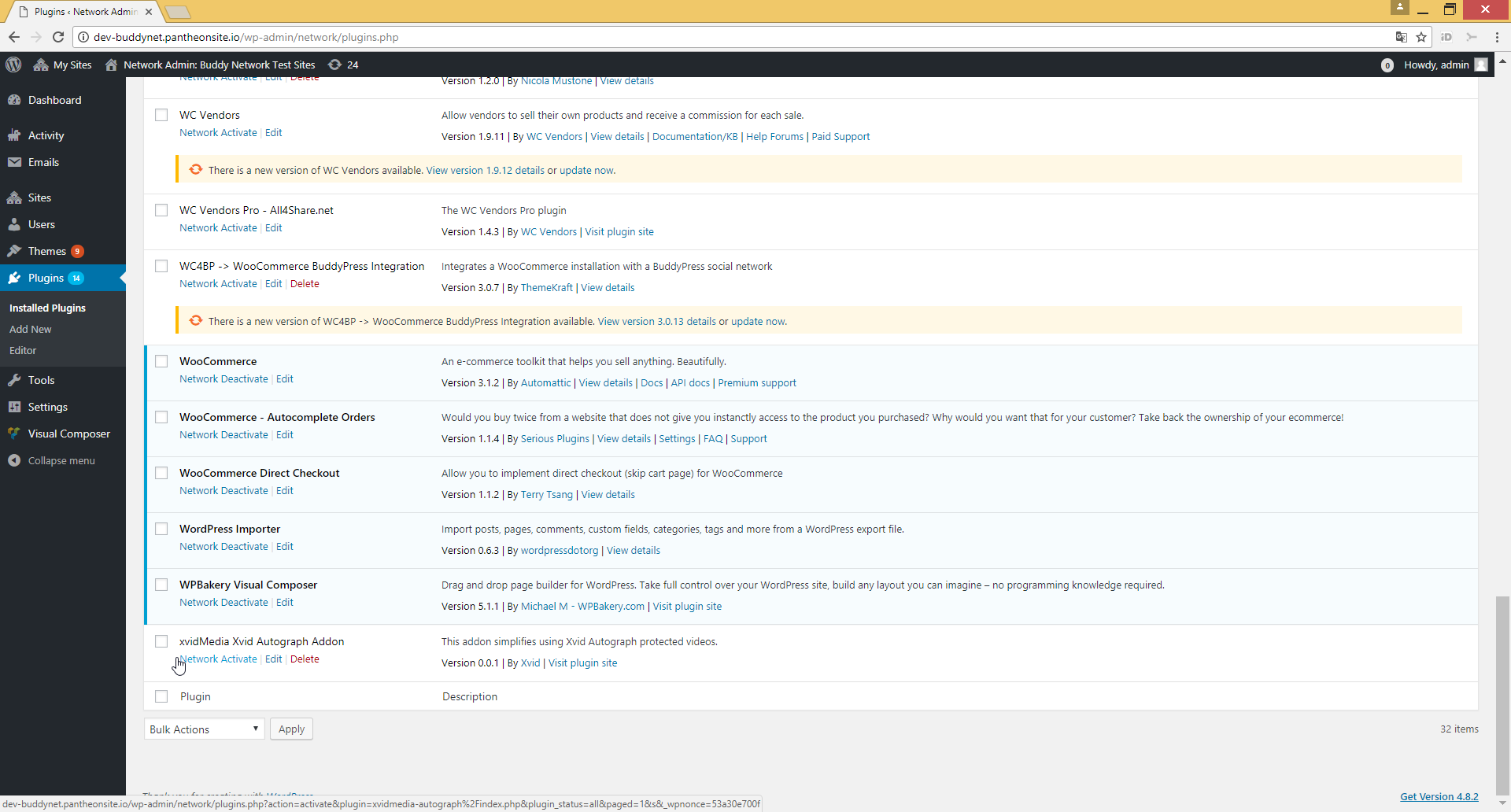
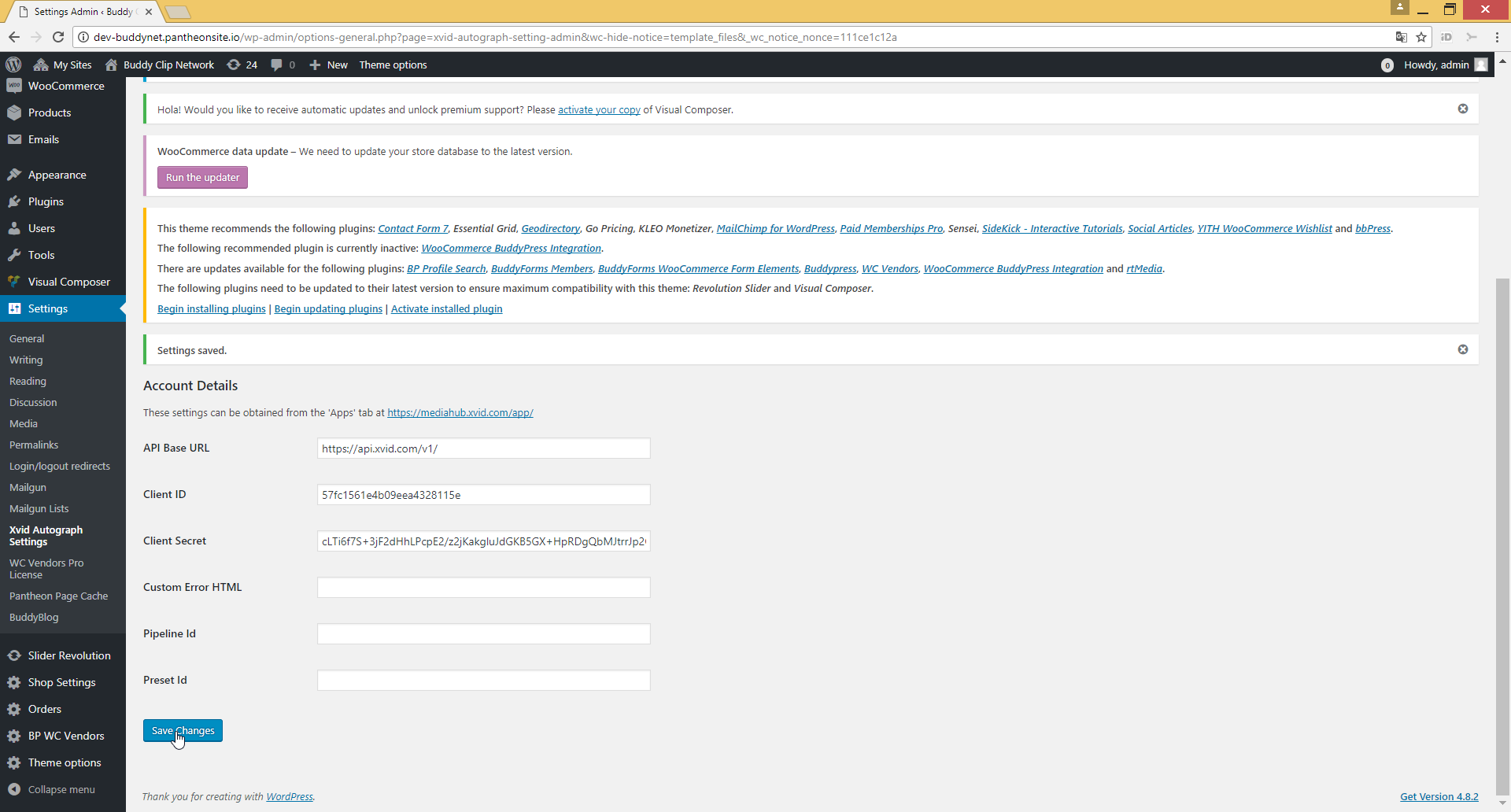
In a multi-site installation, first choose the site you want to use the plugin with. Go to "Settings" and choose "Xvid AutoGraph Settings". Then enter
https://api.xvid.com/v1/as API Base URL and fill in the Client ID and Client Secret of one of your applications from your MediaHub account (you can obtain your client id and client secret by logging on to https://mediahub.xvid.com/app/ and going to the "Apps" tab — click on one of your apps or create a new one, and choose "Edit" to view the corresponding Client ID and Client Secret. You may find more info about creating an app also in the AutoGraph walkthrough).The remaining fields in the configuration can be left empty. "Custom Error HTML" allows you to force a different error message to be rendered into your pages (and visible to the end user) in case the AutoGraph shortcode results in an error. But normally, the default error message is OK and the option can be left empty, just like Pipeline Id and Preset Id too.
Usage
Once the plugin is set up, you can use shortcodes on any of your posts or pages to embed an Xvid AutoGraph-protected download link or video player. Note that each distributed video copy will then be automatically linked with the WordPress user id of the currently logged-in user downloading the file. So you need to make sure that the Xvid AutoGraph links are embedded only into posts and pages that are non-public, meaning that they must be accessible only to logged-in users.
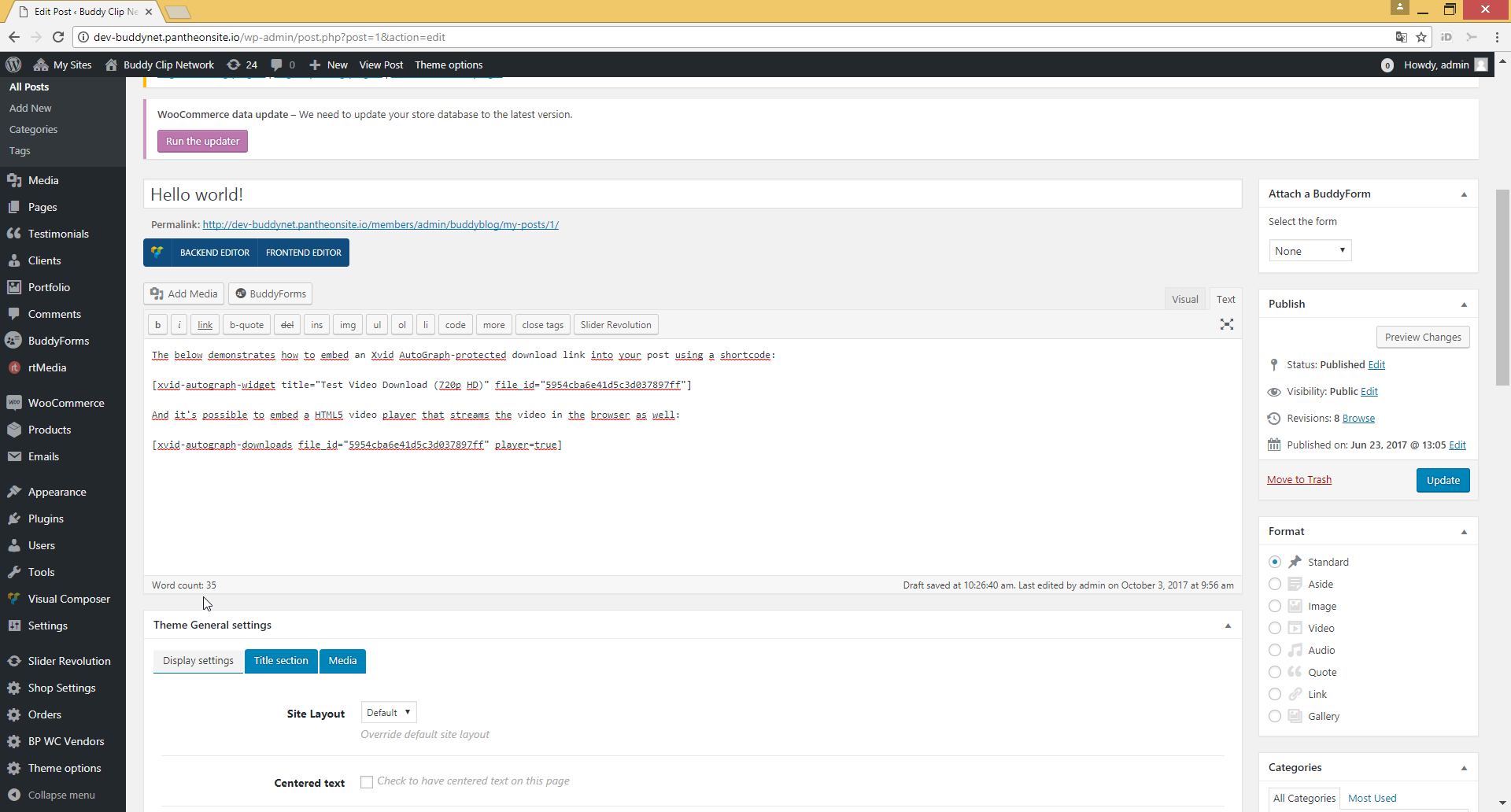
The only information you need is the file_id of the video you want to embed. Every video (and also every different version of it, e.g. different resolutions, different video qualities) created by a MediaHub conversion job has its own file_id. You can obtain the file_ids for all your videos at https://mediahub.xvid.com/app/ under the "Info" tab when clicking the "Details" button for any of the videos listed (see the AutoGraph walkthrough for more screenshots).
Examples
WordPress Sample Post
The following demonstrates how to embed an Xvid AutoGraph-protected download link into your post using a shortcode:
text
[xvid-autograph-widget file_id=562781782e206eac4246845b title="Download now!"]And it's also possible to embed an HTML5 video player that streams the video in the browser:
text
[xvid-autograph-widget file_id=562781782e206eac4246845b player=true]You can also give more than one file_id and title description to the video player as a comma-separated list. This can be useful if you have prepared your video at different resolutions and want to allow your users to choose between them:
text
[xvid-autograph-widget file_id="562781782e206eac4246845b,562781782e206eac4246946c" title="1080p HD,720p HD" player=true]Restricting to WooCommerce Products
Further, you can restrict the download link (or video player) to just users who purchased a particular WooCommerce product.
This works by passing all "allowed" WooCommerce product ids as a comma-separated list in the require_wc_product parameter. If the currently logged-in user has purchased any of the WooCommerce products in the list, then the video is displayed/downloadable. If not, an error message is shown:
text
[xvid-autograph-widget file_id=562781782e206eac4246845b title="WooCommerce buyable video" require_wc_product="1345,6784,9885"]Testing on Public Pages
Finally, and for testing purposes only:
By default, the AutoGraph shortcode will generate personalized download links that contain the user id of the currently logged-in WordPress user as the "tag". And the user id is determined automatically. Because of this, the AutoGraph shortcode will work only in non-public posts and pages, where users must be logged in first to view them.
But for testing purposes, you can also override the "tag" with a static string to make the shortcode work also on public pages and for non-logged-in users:
text
[xvid-autograph-widget file_id=562781782e206eac4246845b title="Download now!" tag="test"]WARNING
Make sure to use the "tag" parameter really just for testing purposes! If it's set, the download links are not per-user personalized anymore and so are NOT backtrace-able to the downloader's user id!